> For the complete documentation index, see [llms.txt](https://dev.phron.ai/llms.txt). Markdown versions of documentation pages are available by appending `.md` to page URLs; this page is available as [Markdown](https://dev.phron.ai/build-with-phronai/smart-contracts-development/solidity-contracts/phron-toolkit/dev-environments/thirdweb.md).
# thirdweb
## Using thirdweb on Phron
### Introduction
[thirdweb](https://thirdweb.com/) is a complete Web3 development framework that provides everything you need to develop smart contracts, build dApps, and more.
With thirdweb, you can access tools to help you through every phase of the dApp development cycle. You can create your own custom smart contracts or use any of thirdweb's prebuilt contracts to get started quickly. From there, you can use thirdweb's CLI to deploy your smart contracts. Then you can interact with your smart contracts by creating a Web3 application using the language of your choice, including but not limited to React and TypeScript.
This guide will show you some of the thirdweb features you can use to develop smart contracts and dApps on Phron. To check out all of the features thirdweb has to offer, please refer to the [thirdweb documentation site](https://portal.thirdweb.com/). For a comprehensive step-by-step tutorial for building a dApp on Phron with thirdweb, be sure to check out Phron's thirdweb tutorial in the tutorials section.
### Create Contract
To create a new smart contract using the [thirdweb CLI](https://portal.thirdweb.com/cli), follow these steps:
1. In your CLI, run the following command:
```bash
npx thirdweb create contract
```
2. Input your preferences for the command line prompts:
1. Give your project a name
2. Choose your preferred framework: **Hardhat** or **Foundry**
3. Name your smart contract
4. Choose the type of base contract: **Empty**, [**ERC20**](https://portal.thirdweb.com/solidity/base-contracts/erc20base), [**ERC721**](https://portal.thirdweb.com/solidity/base-contracts/erc721base), or [**ERC1155**](https://portal.thirdweb.com/solidity/base-contracts/erc1155base)
5. Add any desired [extensions](https://portal.thirdweb.com/solidity/extensions)
3. Once created, navigate to your project’s directory and open in your preferred code editor
4. If you open the `contracts` folder, you will find your smart contract; this is your smart contract written in Solidity
The following is code for an `ERC721Base` contract without specified extensions. It implements all of the logic inside the [`ERC721Base.sol`](https://github.com/thirdweb-dev/contracts/blob/main/contracts/base/ERC721Base.sol) contract; which implements the [`ERC721A`](https://github.com/thirdweb-dev/contracts/blob/main/contracts/eip/ERC721A.sol) standard.
```solidity
// SPDX-License-Identifier: MIT
pragma solidity ^0.8.0;
import '@thirdweb-dev/contracts/base/ERC721Base.sol';
contract Contract is ERC721Base {
constructor(
string memory _name,
string memory _symbol,
address _royaltyRecipient,
uint128 _royaltyBps
) ERC721Base(_name, _symbol, _royaltyRecipient, _royaltyBps) {}
}
```
This contract inherits the functionality of `ERC721Base` through the following steps:
* Importing the `ERC721Base` contract
* Inheriting the contract by declaring that your contract is an `ERC721Base` contract
* Implementing any required methods, such as the constructor
5. After modifying your contract with your desired custom logic, you can deploy it to Phron using [Deploy](https://portal.thirdweb.com/contracts/deploy/overview). That will be covered in the next section!
Alternatively, you can deploy a prebuilt contract for NFTs, tokens, or marketplace directly from the thirdweb Explore page:
1. Go to the [thirdweb Explore page](https://thirdweb.com/explore)
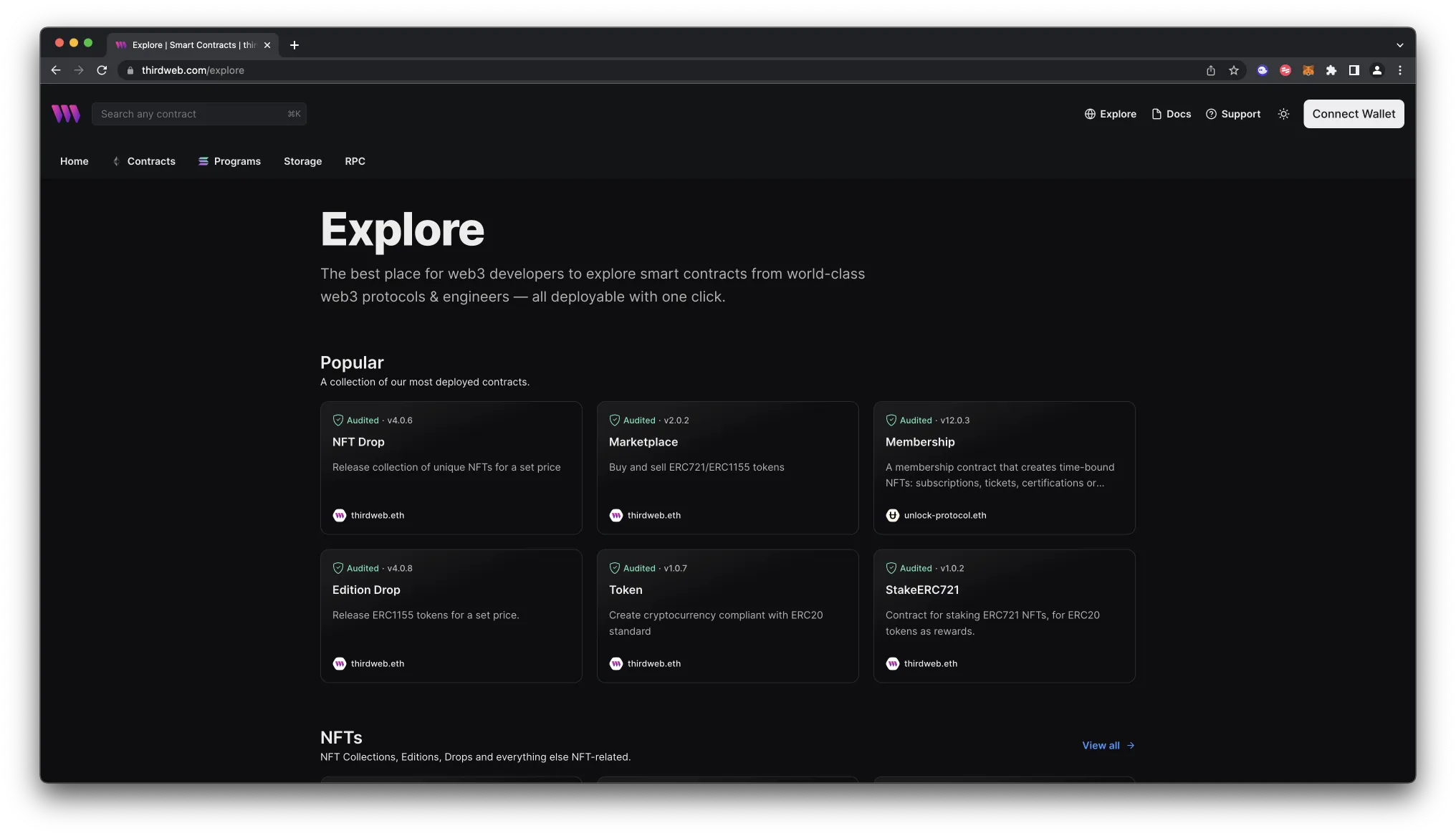
2. Choose the type of contract you want to deploy from the available options: NFTs, tokens, marketplace, and more
3. Follow the on-screen prompts to configure and deploy your contract
For more information on different contracts available on Explore, check out [thirdweb’s documentation on prebuilt contracts](https://portal.thirdweb.com/contracts).
### Deploy Contract
[Deploy](https://portal.thirdweb.com/contracts/deploy/overview) is thirdweb's tool that allows you to easily deploy a smart contract to any EVM compatible network without configuring RPC URLs, exposing your private keys, writing scripts, and other additional setup such as verifying your contract.
1. To deploy your smart contract using deploy, navigate to the `contracts` directory of your project and execute the following command:
```bash
npx thirdweb deploy
```
Executing this command will trigger the following actions:
* Compiling all the contracts in the current directory
* Providing the option to select which contract(s) you wish to deploy
* Uploading your contract source code (ABI) to IPFS
2. When it is completed, it will open a dashboard interface to finish filling out the parameters
* `_name` - contract name
* `_symbol` - symbol or "ticker"
* `_royaltyRecipient` - wallet address to receive royalties from secondary sales
* `_royaltyBps` - basis points (bps) that will be given to the royalty recipient for each secondary sale, e.g. 500 = 5%
3. Select the desired Phron network.
4. Manage additional settings on your contract’s dashboard as needed such as uploading NFTs, configuring permissions, and more
For additional information on Deploy, please reference [thirdweb’s documentation](https://portal.thirdweb.com/contracts/deploy/overview).
### Create Application
thirdweb offers SDKs for a range of programming languages, such as React, React Native, TypeScript, and Unity. You'll start off by creating an application and then you can choose which SDK to use:
1. In your CLI run the following command:
```bash
npx thirdweb create --app
```
2. Input your preferences for the command line prompts:
1. Give your project a name
2. Choose your preferred framework: **Next.js**, **Vite**, or **React Native**. For this example, select **Vite**
3. Use the React or TypeScript SDK to interact with your application’s functions. This will be covered in the following section on interacting with a contract
#### Specify Client ID
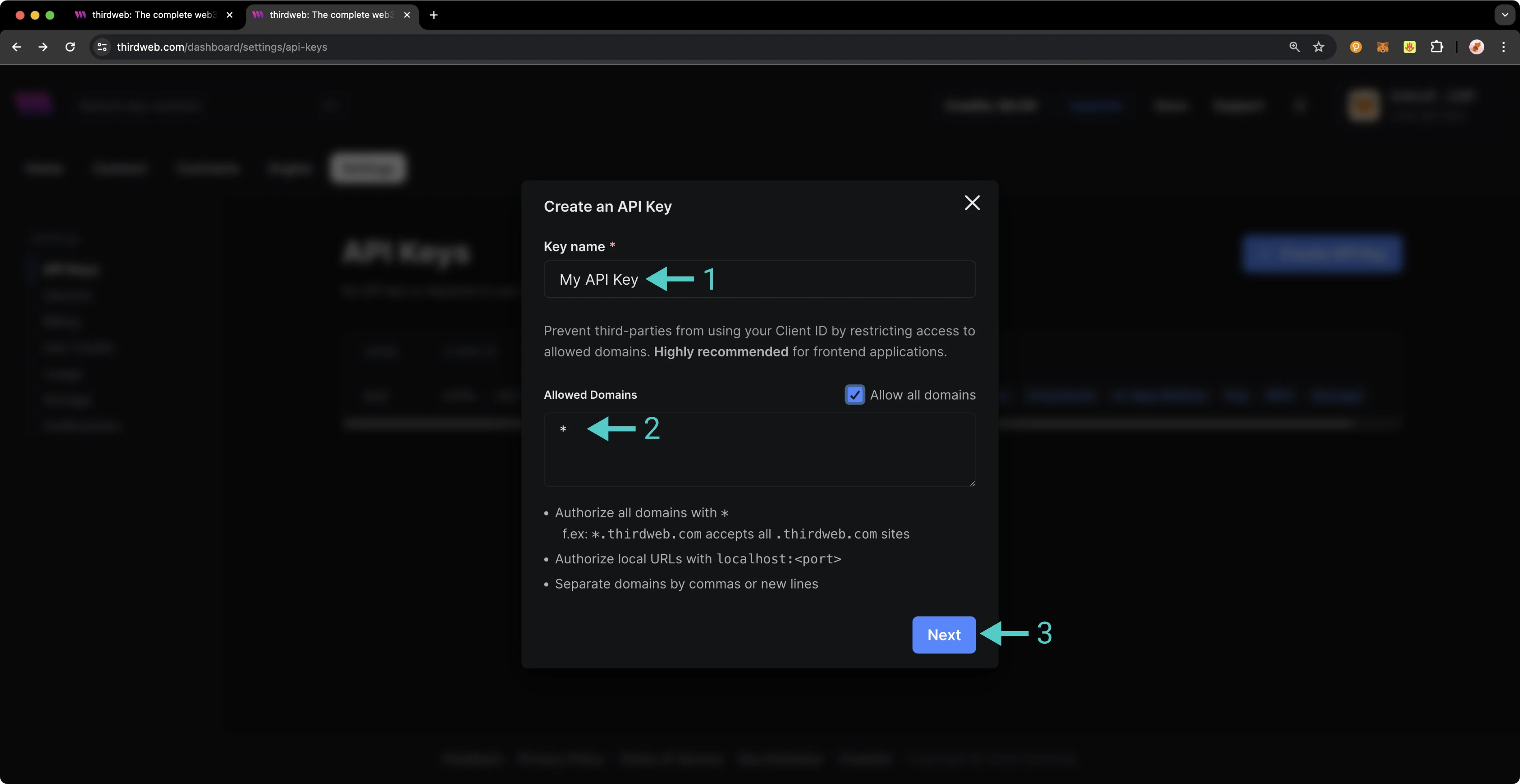
Before you launch your dApp (locally or publicly deployed), you must have a thirdweb Client ID associated with your project. A thirdweb Client ID is synonymous with an API key. You can create a free API key by [signing into your thirdweb account, navigating to **Settings**, and clicking on **API Keys**](https://thirdweb.com/dashboard/settings/api-keys).
Press **Create API Key** then take the following steps:
1. Give your API key a name
2. Enter the allowed domains that the API key should accept requests from. It's recommended that you allow only necessary domains, but for development purposes, you can select **Allow all domains**
3. Press **Next** and confirm the prompt on the next page
> ### Note
>
> The respective name for your Client ID variable will vary with the framework you've chosen, e.g., Vite will be `VITE_TEMPLATE_CLIENT_ID`, Next.js will be `NEXT_PUBLIC_TEMPLATE_CLIENT_ID`, and React Native will be `EXPO_PUBLIC_THIRDWEB_CLIENT_ID`.
Finally, specify your Client ID (API Key) in your `.env` file. Your `.env` file must be located at the root directory of the project (e.g., not the `src` folder).
If you generated your thirdweb app with Vite, you'll have a `client.ts` file that looks like the below. As long you've created a `.env` file with your thirdweb API Key (Client ID) defined in `VITE_TEMPLATE_CLIENT_ID`, you can leave the `client.ts` as is and proceed to the next section.
client.ts
```typescript
import { createThirdwebClient } from 'thirdweb';
// Replace this with your client ID string.
// Refer to https://portal.thirdweb.com/typescript/v5/client on how to get a client ID
const clientId = import.meta.env.VITE_TEMPLATE_CLIENT_ID;
export const client = createThirdwebClient({
clientId: clientId,
});
```
> ### Note
>
> If you don't create a Client ID and specify is correctly in your `.env` file, you'll get a blank screen when trying to build the web app. There is no error message shown without digging into the console, so ensure you've set your Client ID correctly first and foremost.
#### Run Locally
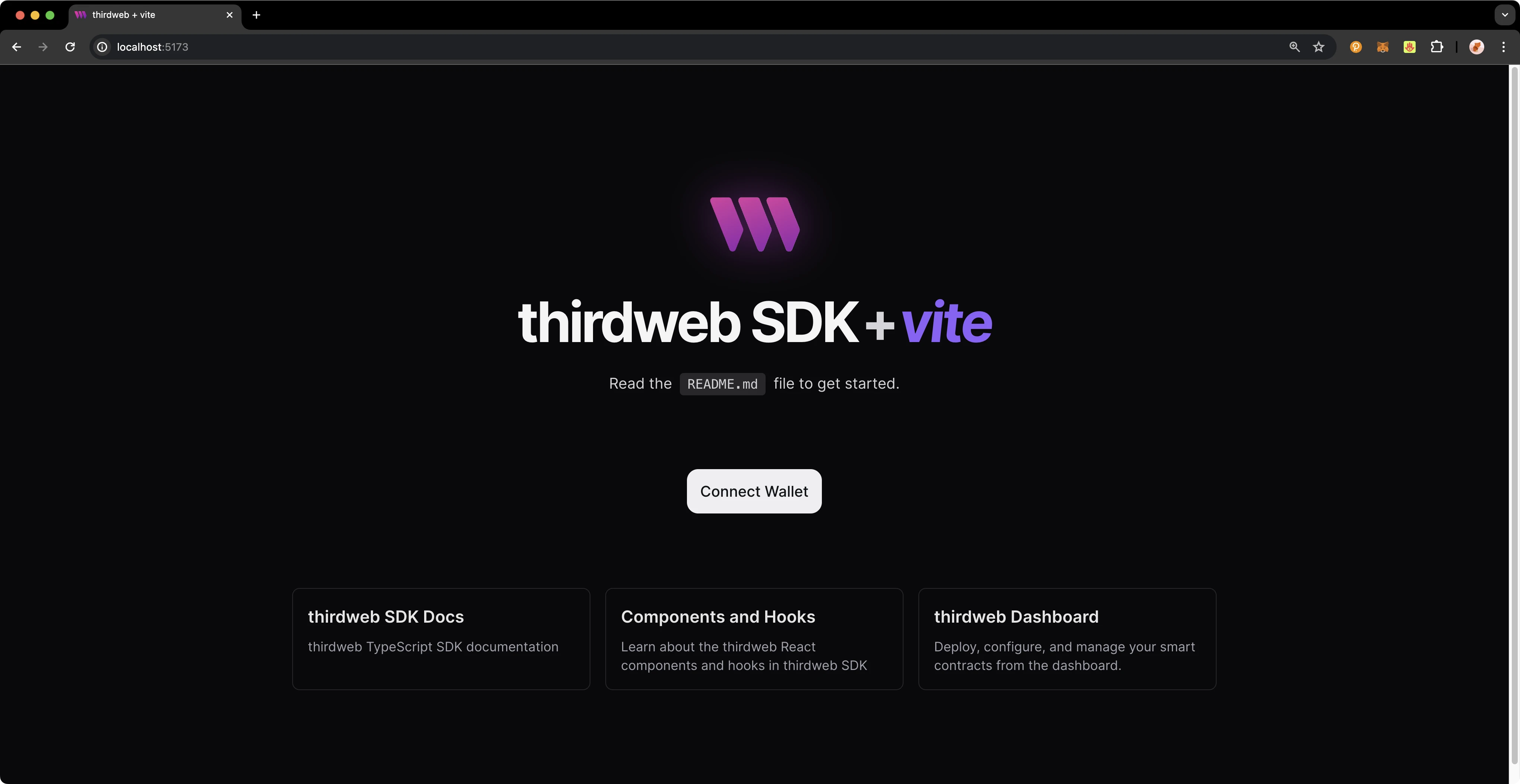
To run your dApp locally for testing and debugging purposes, use the command:
```bash
yarn dev
```
The app will compile and specify the localhost and port number for you to visit in your browser.
#### Configure Chain
thirdweb offers a small number of chains from `@thirdweb/chains` and does not include Phron networks in that list, so you'll need to specify the network details including chain ID and RPC URL. You can create a custom chain with [`defineChain`](https://portal.thirdweb.com/references/typescript/v5/defineChain) as follows:
chains.ts
```javascript
import { defineChain } from 'thirdweb';
const phron = defineChain({
id: 7744,
rpc: 'https://testnet.phron.ai',
});
```
### thirdweb SDK
The following sections will provide an overview of fundamental methods of the thirdweb SDK and how to interact with them. Each code snippet will showcase the relevant import statements and demonstrate using the method in a typical scenario. This guide is intended to be a quick reference guide to the most common thirdweb methods that dApp developers will use. However, it does not include information on each and every thirdweb offering. For details on the entirety of thirdweb's offerings, be sure to visit the [thirdweb documentation site](https://portal.thirdweb.com/).
For a comprehensive, step-by-step guide to building a dApp with thirdweb be sure to check out Phron's thirdweb tutorial in the tutorials section. The following sections will cover everything from connecting wallets, to preparing transactions, and more.
#### Accounts and Wallets
thirdweb distinguishes between accounts and wallets in the SDK. In the eyes of the thirdweb SDK, an account always has a single blockchain address and can sign messages, transactions, and typed data, but it cannot be "connected" or "disconnected." In contrast, a wallet contains one or more accounts, can be connected or disconnected, and delegates the signing tasks to its accounts.
The below code snippet demonstrates how to initialize and connect a MetaMask wallet using the thirdweb SDK, then sign and send a transaction, retrieving the transaction hash. This process is applicable to any of the 300+ wallet connectors supported by the SDK.
initialize.ts
```typescript
import { sendTransaction } from 'thirdweb';
// MetaMask wallet used for example, the pattern is the same for all wallets
import { createWallet } from 'thirdweb/wallets';
// Initialize the wallet. thirdweb supports 300+ wallet connectors
const wallet = createWallet('io.metamask');
// Connect the wallet. This returns a promise that resolves to the connected account
const account = await wallet.connect({
// Pass the client you created with `createThirdwebClient()`
client,
});
// Sign and send a transaction with the account. Returns the transaction hash
const { transactionHash } = await sendTransaction({
// Assuming you have called `prepareTransaction()` or `prepareContractCall()` before, which returns the prepared transaction to send
transaction,
// Pass the account to sign the transaction with
account,
});
```
#### Get Contract
To connect to your contract, use the SDK’s [`getContract`](https://portal.thirdweb.com/references/typescript/v5/getContract) method. As an example, you could fetch data from an incrementer contract on Phron.
{% code overflow="wrap" %}
```typescript
import { getContract } from 'thirdweb';
import { client } from './client';
const myContract = getContract({
client,
chain: phron,
address: 0xa72f549a1a12b9b49f30a7f3aeb1f4e96389c5d8, // Incrementer contract address on Phron
abi: '[{"inputs":[],"name":"increment","outputs":[],"stateMutability":"nonpayable","type":"function"},{"inputs":[],"name":"number","outputs":[{"internalType":"uint256","name":"","type":"uint256"}],"stateMutability":"view","type":"function"},{"inputs":[],"name":"timestamp","outputs":[{"internalType":"uint256","name":"","type":"uint256"}],"stateMutability":"view","type":"function"}]';
});
```
{% endcode %}
#### Calling Contract Functions
To call a contract in the latest version of the SDK, you can use [`prepareContractCall`](https://portal.thirdweb.com/typescript/v5/transactions/prepare).
```typescript
import { prepareContractCall, toWei } from 'thirdweb';
const tx = prepareContractCall({
contract,
// Pass the method signature that you want to call
method: 'function mintTo(address to, uint256 amount)',
// Pass the params for that method.
// Their types are automatically inferred based on the method signature
params: ['0x123...', toWei('100')],
});
```
Returning to our incrementer contract, preparing a call to increment the contract looks like the following:
```typescript
import { prepareContractCall } from 'thirdweb';
const tx = prepareContractCall({
contract,
// Pass the method signature that you want to call
method: 'function increment()',
// Increment takes no params so we are leaving an empty array
params: [],
});
```
#### Preparing Raw Transactions
You can also prepare a transaction directly with encoded data. To do so, you'll use thirdweb's [`prepareTransaction` method](https://portal.thirdweb.com/typescript/v5/transactions/prepare) and specify the `to`, `value`, `chain`, and `client` values directly.
```typescript
import { prepareTransaction, toWei } from 'thirdweb';
const transaction = prepareTransaction({
// The account that will be the receiver
to: '0x456...',
// The value is the amount of ether you want to send with the transaction
value: toWei('1'),
// The chain to execute the transaction on. This assumes you already set up
// phron as a custom chain as shown in the configure chain section
chain: phron,
// Your thirdweb client
client,
});
```
#### Reading Contract State
Use the [`readContract` function](https://portal.thirdweb.com/typescript/v5/transactions/read) to call any read functions on your contract by passing in the Solidity method signature and any parameters.
```typescript
import { readContract } from 'thirdweb';
const balance = await readContract({
contract: contract,
method: 'function balanceOf(address) view returns (uint256)',
params: ['0x123...'],
});
```
For a function that takes no parameters, such as the number function that returns the current number stored in the incrementer contract, you simply need to provide the function name as follows:
```typescript
import { readContract } from 'thirdweb';
const number = await readContract({
contract: contract,
method: 'number',
params: [],
});
```
Did you know? With the [thirdweb CLI](https://portal.thirdweb.com/cli), you can easily and generate functions for all of the possible calls to a contract. To do so, run the following command in the command line:
```bash
npx thirdweb generate INSERT_CHAIN_ID/INSERT_CONTRACT_ADDRESS
```
Both the chain ID and the contract address are required. As an example, if you wanted to generate the functions for the incrementer contract on Phron , you would use the following command:
```bash
npx thirdweb generate 1287/0xa72f549a1a12b9b49f30a7f3aeb1f4e96389c5d8
```
The file generated with all of the corresponding methods will be placed in a directory labelled `thirdweb/CHAIN_ID/CONTRACT_ADDRESS`. In the example shown above, the output file is located at `thirdweb/1287/0xa72f549a1a12b9b49f30a7f3aeb1f4e96389c5d8.ts`. For more information, see the [thirdweb's docs on the CLI](https://portal.thirdweb.com/cli/generate).
#### Sending a Transaction
Every transaction sent using the SDK must first be prepared. This preparation process is synchronous and lightweight, requiring no network requests. Additionally, it provides type-safe definitions for your contract calls.
You can prepare a transaction as follows:
Prepare a transaction
```javascript
import { prepareTransaction, toWei } from 'thirdweb';
const transaction = prepareTransaction({
to: '0x1234567890123456789012345678901234567890',
chain: phron,
client: thirdwebClient,
value: toWei('1.0'),
gasPrice: 150n,
});
```
After the transaction is prepared, you can send it as follows:
Send a transaction
```javascript
import { sendTransaction } from 'thirdweb';
const { transactionHash } = await sendTransaction({
account,
transaction,
});
```
You can optionally use `sendAndConfirmTransaction` to wait for the transaction to be mined. This is relevant if you want to block the user from continuing until the transaction is confirmed.
Send and Confirm a Transaction
```javascript
import { sendAndConfirmTransaction } from 'thirdweb';
import { createWallet } from 'thirdweb/wallets';
const wallet = createWallet('io.metamask');
const account = await wallet.connect({ client });
const receipt = await sendAndConfirmTransaction({
transaction,
account,
});
```
#### Transaction Utilities
thirdweb provides a number of helpful utility methods surrounding preparing and sending transactions.
You can estimate the gas used by a transaction as follows:
Estimating gas
```javascript
import { estimateGas } from 'thirdweb';
const gasEstimate = await estimateGas({ transaction });
console.log('estmated gas used', gasEstimate);
```
You can estimate the gas cost in Ether and Wei as follows:
Estimating gas cost
```javascript
import { estimateGas } from 'thirdweb';
const gasCost = await estimateGasCost({ transaction });
console.log('cost in ether', gasCost.ether);
```
thirdweb also provides a handy way to simulate transactions and verify their integrity before actually submitting it to the blockchain. You can simulate a transaction as follows:
Simulate a transaction
```javascript
import { simulateTransaction } from 'thirdweb';
const result = await simulateTransaction({ transaction });
console.log('simulation result', result);
```
You can encode transaction data to act on later by taking the following steps:
Encode transaction data
```javascript
import { encode } from 'thirdweb';
const data = await encode(transaction);
console.log('encoded data', data);
```
#### ConnectButton
Perhaps the first and most important interaction users will have with your dApp is connecting their wallet. thirdweb provides an easy and highly customizable way for you to enable this. thirdweb provides a highly customizable [`ConnectButton`](https://portal.thirdweb.com/typescript/v5/react/components/ConnectButton) to tailor it to your desired wallets. The `ConnectButton` accepts an optional `wallets` parameter with an array of wallets. You can add or remove wallets from the `wallets` array to change the options available to users. thirdweb also offers a [`ConnectButton` Playground](https://thirdweb.com/dashboard/connect/playground) to customize and view changes for the `ConnectButton` in real-time, given the button's high degree of flexibility.
ConnectButton
```javascript
import { ConnectButton } from 'thirdweb/react';
import { createWallet, inAppWallet } from 'thirdweb/wallets';
const wallets = [
inAppWallet(),
createWallet('io.metamask'),
createWallet('com.coinbase.wallet'),
createWallet('me.rainbow'),
];
function Example() {
return (
);
}
```
### Deploy Application
As a reminder, you can build your example project locally by running:
```bash
yarn dev
```
To host your static web application on decentralized storage, run:
```bash
npx thirdweb deploy --app
```
By running this command, your application is built for production and stored using [Storage](https://portal.thirdweb.com/infrastructure/storage/overview), thirdweb's decentralized file management solution. The built application is uploaded to IPFS, a decentralized storage network, and a unique URL is generated for your application. This URL serves as a permanent hosting location for your application on the web.
If you have any further questions or encounter any issues during the process, please reach out to thirdweb support at [support.thirdweb.com](http://support.thirdweb.com/).
This tutorial is for educational purposes only. As such, any contracts or code created in this tutorial should not be used in production.The information presented herein has been provided by third parties and is made available solely for general information purposes. Phron does not endorse any project listed and described on the Phron Doc Website (). Phron does not warrant the accuracy, completeness or usefulness of this information. Any reliance you place on such information is strictly at your own risk. Phron disclaims all liability and responsibility arising from any reliance placed on this information by you or by anyone who may be informed of any of its contents. All statements and/or opinions expressed in these materials are solely the responsibility of the person or entity providing those materials and do not necessarily represent the opinion of Phron. The information should not be construed as professional or financial advice of any kind. Advice from a suitably qualified professional should always be sought in relation to any particular matter or circumstance. The information herein may link to or integrate with other websites operated or content provided by third parties, and such other websites may link to this website. Phron has no control over any such other websites or their content and will have no liability arising out of or related to such websites or their content. The existence of any such link does not constitute an endorsement of such websites, the content of the websites, or the operators of the websites. These links are being provided to you only as a convenience and you release and hold Phron harmless from any and all liability arising from your use of this information or the information provided by any third-party website or service.
---
# Agent Instructions
This documentation is published with GitBook. GitBook is the documentation platform designed so that both humans and AI agents can read, navigate, and reason over technical content effectively. Learn more at gitbook.com.
## Querying This Documentation
If you need additional information that is not directly available in this page, you can query the documentation by asking a question.
Perform an HTTP GET request on the following URL with the `ask` and `goal` query parameters:
```
GET https://dev.phron.ai/build-with-phronai/smart-contracts-development/solidity-contracts/phron-toolkit/dev-environments/thirdweb.md?ask=&goal=
```
`ask` is the immediate question: it should be specific, self-contained, and written in natural language.
`goal` is what the user is ultimately trying to achieve, the reason they need the answer. Sharing it helps GitBook give you a better, more relevant answer. A goal is most helpful when it describes the outcome the user wants rather than restating the question. For example, with `ask=how do I create an API token`, a goal like `automate deployments from our CI pipeline` lets GitBook tailor the answer to that use case.
The response will contain a direct answer to the question and relevant excerpts and sources from the documentation.
Use this mechanism when the answer is not explicitly present in the current page, you need clarification or additional context, or you want to retrieve related documentation sections.